
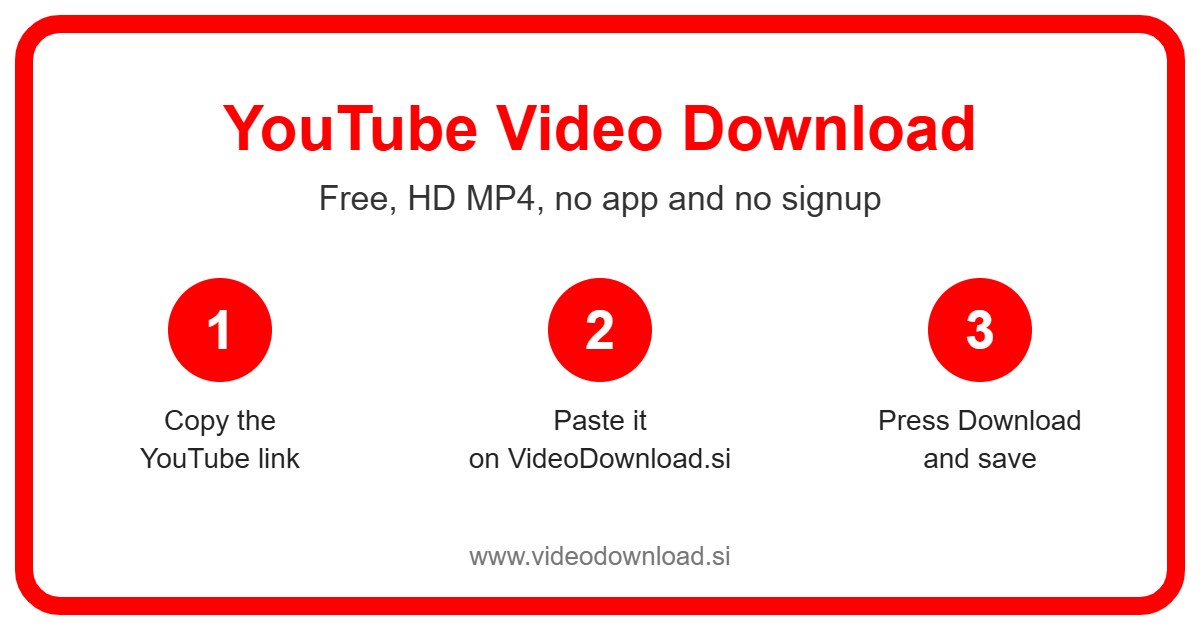
This YouTube video download page lets you save a regular YouTube video as an MP4 file, straight from your browser. Copy the video’s link, paste it into the box at the top, press Download, and the file is yours to watch offline. No app, no account, no cost.
We’re talking about the normal videos here, the ones that run ten minutes, an hour, or sometimes much longer. Think cooking tutorials, guitar lessons, a talk you keep meaning to finish, or the video of your sister’s school concert that someone in the family uploaded.
Long videos behave a little differently from quick clips, so I’ll explain what to expect, plus a couple of honest alternatives if downloading isn’t the right fit for you.
Regular videos versus Shorts
YouTube has two main kinds of video. There are Shorts, the quick vertical clips you swipe through, and there are regular videos, which are usually horizontal and can be any length at all. This page is mainly for the regular ones, though Shorts links will work too.
The big practical difference is size. A two hour lecture is a much bigger file than a thirty second clip, so it takes longer to prepare and longer to save. More on that below.
Quick note: VideoDownload.si is an independent site. We aren’t affiliated with YouTube or Google.
Step by step: doing a YouTube video download
- Open the video in the YouTube app or on the YouTube website.
- Tap Share under the video, or the three dots menu.
- Tap Copy link.
- Come back to this page on VideoDownload.si.
- Paste the link into the box at the top of the page.
- Press Download.
- Once the video appears, save the MP4.
With a long video, be patient after you press Download. The tool has more to prepare, so it can take a while before the file is ready. Keep the page open and don’t refresh it halfway through.
Saving on a phone or tablet
On Android, the MP4 usually goes into your Downloads folder. On iPhone and iPad, Safari saves it to the Files app in Downloads, and from there you can tap Share and choose Save Video to add it to Photos. Long videos eat storage, so check you’ve got enough free space before you start. A feature length video can easily take up more room than a few hundred photos.
Saving on a computer
This is honestly the comfiest way to grab big videos. Copy the link from the address bar on Windows or Mac, paste it here, and the file lands in your Downloads folder. A laptop on a decent WiFi connection handles large files much better than a phone on mobile data.
Why do a YouTube video download at all?
Everyone’s reasons are a bit different, but these come up again and again.
- Long flights and trips. Planes, trains and holiday cottages often have patchy internet or none at all. Saving a few videos before you leave means you’ve got something to watch.
- Learning at your own pace. Say you’re following a video on how to fix a leaky tap. You’ll want to pause, rewind and squint at the screen with wet hands, ideally without it buffering under the sink where the WiFi barely reaches.
- Backing up your own uploads. If you’ve been posting to YouTube for years, some of your original files are probably long gone. Saving your own videos is a simple way to keep a copy.
- Older relatives. Grandad might never open YouTube, but he’ll happily watch a file you put on his tablet. A recorded family event or a church service is a lovely thing to hand over.
- Saving mobile data. Download at home on WiFi, watch later on the bus without using up your plan.
Prefer the official route? YouTube Premium is an option
I want to be fair here. If you watch a lot of YouTube offline, YouTube Premium is YouTube’s own paid plan, and it includes official offline viewing inside the YouTube app. You tap a download button under the video and it’s saved in the app for later.
The difference is that Premium downloads stay inside the YouTube app, while this tool gives you an MP4 file you can keep in your own folders. For a lot of people Premium is the better fit, especially if they also like watching without ads. Think about which suits you better before you decide.
What makes this YouTube video download tool handy
You don’t have to install anything or sign up. It works in any modern browser on Android, iPhone, iPad, Windows and Mac. We never ask for your YouTube or Google login, and you won’t need one.
It saves the best quality YouTube makes available for that video. The exact quality depends on what the uploader put up, so an old video filmed on a camcorder will still look like an old video.
Troubleshooting a YouTube video download
It’s taking a really long time
For long videos, that’s normal, and it’s the most common question we get about a YouTube video download. A full length film or lecture simply takes longer to prepare than a short clip. Slow WiFi makes it worse, so if you can, use a stronger connection and leave the page open until it finishes.
The link doesn’t work
Make sure you copied the video link and not a playlist, channel or search page. Open the video itself and use Share, then Copy link.
It says the video isn’t available
Private videos, age restricted videos and anything that’s been removed can’t be downloaded. We don’t ask for passwords or logins to get around that.
The file won’t open
Check that the download actually completed, since a big file that stopped halfway won’t play properly. If it’s complete, try a different video player.
Where’s my file?
Look in Downloads on Android or your computer. On iPhone, it’s in the Files app under Downloads.
Play fair with other people’s videos
Use the YouTube video download tool only for videos you made yourself, or ones you’ve got permission to use, and keep them for personal offline watching. If you show a video to someone else, give the creator credit. And please don’t reupload other people’s videos to your own channel. A lot of hours go into a good YouTube video.
FAQ about downloading YouTube videos
Is the YouTube video download tool free?
Yes, completely free, and there’s no account to create.
Why are long videos slower?
They’re bigger files, so there’s more to prepare and more to save. A short clip might be ready almost straight away, while a long video can take noticeably longer.
Is YouTube Premium the same thing?
Not quite. Premium is YouTube’s official paid plan with offline viewing inside the YouTube app. This tool gives you an MP4 file instead. Both are fine options depending on what you need.
Can I download a private video?
No. Only public videos work. Private, age restricted or removed videos can’t be saved.
What quality do I get?
The best quality YouTube makes available for that particular video, which depends on the original upload.
Does it work on my iPad?
Yes. Use Safari, and the file will save into the Files app under Downloads.
Before you go
Got a long trip coming up, or a tutorial you want to keep handy? Paste the link at the top of the page and press Download. Give a big video a little time, keep an eye on your storage, and your YouTube video download will be sitting in your folder ready to watch, signal or no signal.
More Free Video Download Tools
Want to save something else? Try our Facebook Video Download, YouTube Reel Download, YouTube Short Download, TikTok Video Download. You can also head back to the VideoDownload.si home page to see every tool in one place.
If a link will not copy or a clip seems to be missing, the official YouTube Help explains how sharing and privacy settings work on YouTube.