
Quick answer: To download a LinkedIn reel, open it, tap the three dots on the post and choose Copy link to post, paste the link into the LinkedIn Reel Downloader box above and press Download. The reel saves to your phone or computer as an HD MP4 file, free, with no app and no login.
| LinkedIn Reel Downloader | Details |
|---|---|
| Price | Free |
| File type | MP4 video |
| Quality | HD, up to 1080p when the original allows |
| Watermark added by us | None |
| App or signup needed | No |
| Works on | Android, iPhone, Windows and Mac |
| Which videos | Public LinkedIn reels only |
Looking for a simple LinkedIn reel downloader? You’re in the right place. Paste the link to a public LinkedIn video into the box at the top of this page, press Download, and you’ll get an MP4 file you can keep on your phone or computer.
LinkedIn isn’t the first app most people think of for quick vertical clips. But scroll your feed for a minute and you’ll spot plenty of them: a recruiter sharing an interview tip, a founder filming an update at the airport, a team cheering at an awards night. Sometimes you want to keep one, and LinkedIn has no button for saving it to your device.
That’s the gap this LinkedIn reel downloader fills. It’s free, there’s nothing to sign up for, and it runs right in your browser.
Wait, Does LinkedIn Actually Have Reels?
Honestly, not by that name. LinkedIn just calls them videos. What it does have is a vertical video feed of short clips you swipe through, a lot like what you’d find on other apps. Because it looks and feels so familiar, most people call them LinkedIn reels, and some call them LinkedIn shorts.
So if you typed LinkedIn reel download into a search bar, you didn’t get it wrong. Plenty of people search exactly that. Whatever name you use, they’re LinkedIn videos underneath, and this LinkedIn reel downloader treats a short vertical clip and a longer video in a normal post exactly the same way.
How to Use the LinkedIn Reel Downloader, Step by Step
Once you’ve done a LinkedIn reel download a single time, the next one takes well under a minute.
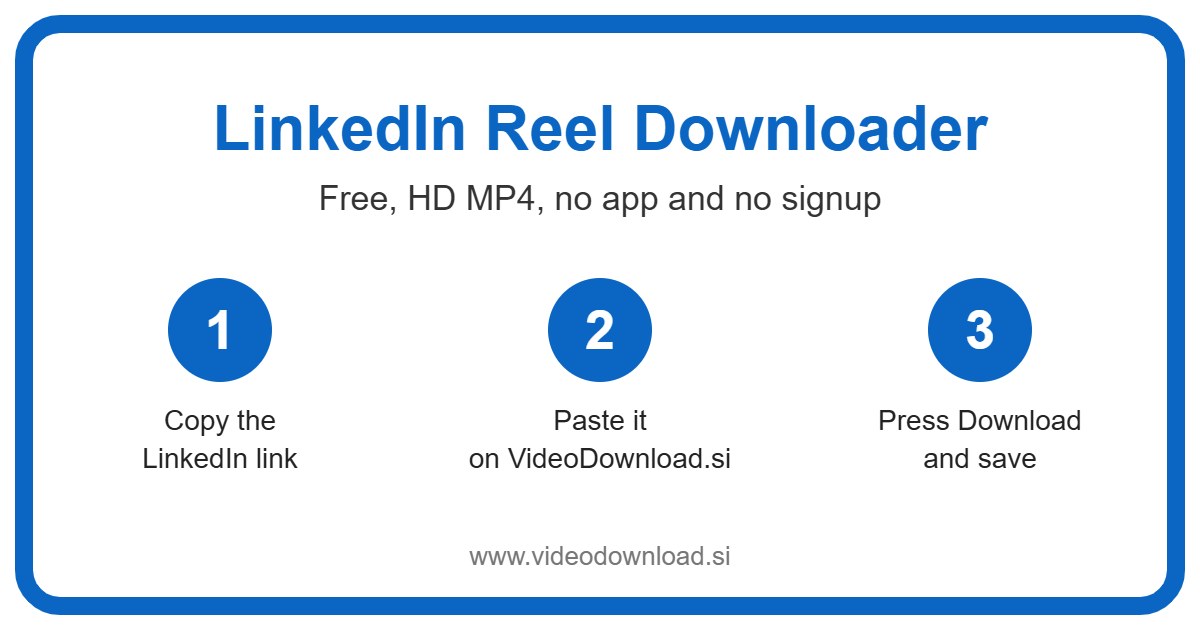
- Open the reel in the LinkedIn app or on LinkedIn.com.
- Tap the three dots on the post, or tap Share.
- Choose “Copy link to post”.
- Come back to this page and paste the link into the box at the top.
- Press Download.
- Pick the quality you want and save the MP4.
When the tool finds the video, it shows you a few buttons, for example 720p, 480p and 360p, and each one shows the file size before you tap. A bigger number means a sharper picture and a bigger file. There’s also an “Audio only” button if all you want is the sound.
On a phone
On Android, the file usually lands in your Downloads folder and pops up in your gallery soon after. On an iPhone or iPad, Safari saves it to the Files app, inside the Downloads folder. Open it there, tap the share icon, and save it to Photos so it sits with the rest of your videos.
On a computer
On Windows or Mac it’s even simpler. Copy the post link from LinkedIn.com in your browser, paste it here, and the MP4 goes straight to your usual Downloads folder.
Real Reasons People Save LinkedIn Reels
You might wonder why anyone would want to keep a work video. Turns out there are lots of ordinary, everyday reasons.
Take a job tip video. Say a hiring manager posts a 60 second clip on how to answer “tell me about yourself” in an interview. You’d like to watch it again on the train tomorrow, but the signal in the tunnel is patchy. Do a quick LinkedIn reel download tonight and it’ll play fine offline on the way in.
Or think about a proud moment. Your colleague Priya wins an award, someone films her speech, and the clip ends up on LinkedIn. Her parents aren’t on LinkedIn and never will be. Save the clip, send it to them on WhatsApp, and they get to see her on stage too.
A few other things people like to keep:
- A short product demo to show the team in a meeting room with no internet
- A how to clip, like that spreadsheet shortcut you keep forgetting
- A moment from a conference talk that stuck with you
- Your own reels, as a backup in case you ever delete the post
Why This LinkedIn Reel Downloader Feels So Easy
There’s no app to install and no account to create. You don’t log in to LinkedIn through us either. We never ask for your LinkedIn login, and honestly, you should be wary of any site that does.
It works in the browser you already have, on Android, iPhone, iPad, Windows and Mac. It saves the best quality LinkedIn makes available for that video, and because the file size is printed on each button, there are no surprises. Phone storage nearly full? Pick 360p and you can still keep the clip without clogging things up.
The audio only option comes in handy more often than you’d expect. A short pep talk or a career advice clip works nicely as something to listen to while you walk the dog.
When Things Don’t Go to Plan
Most of the time it just works. When it doesn’t, it’s usually one of these.
The link doesn’t work
Check that you used “Copy link to post” and that the link comes from LinkedIn.com. If you accidentally copied some text from the post instead, go back and copy the link again. It happens to everyone.
It says the video isn’t available
Only public posts work. If the post is set to “Connections only”, sits inside a private group, or has been deleted, the LinkedIn reel downloader simply can’t see it. LinkedIn Learning courses and paid content won’t work either. That’s not a fault, it’s just content that isn’t public.
The video won’t play
Nearly every device plays MP4. If yours won’t, try a different player, such as VLC on a computer. On iPhone, make sure the download actually finished before you open it from the Files app.
Where did my file go?
Check Downloads first. On iPhone that means Files, then Downloads. On Android, look in your Files or My Files app. On a computer, your browser’s download list shows exactly where it went.
It’s taking ages
Slow WiFi is the usual culprit when a LinkedIn reel download drags. Try a lower quality like 360p, which is a much smaller file, or wait until you’re on a stronger connection.
A Quick Word About Respecting Creators
People post on LinkedIn to build their name and their business, so be kind with what you save. Download your own reels, or ones you have permission to use, for watching offline. If you pass a clip along, credit the person who made it.
This matters even more with work content. If you’d like to use someone else’s video in your own marketing, on your website or in a sales deck, ask them first. Most people are happy to say yes, and nobody enjoys finding their face in someone else’s ad. Please don’t reupload other people’s videos as your own.
LinkedIn Reel Download Questions
Is this LinkedIn reel downloader free?
Yes. Every LinkedIn reel download on this page is free, with no sign up and nothing to install.
Do I need a LinkedIn account?
You need to be able to copy the link to the post, but we never ask for your LinkedIn login or password.
Can I save a reel from someone’s connections only post?
No. Only public posts work. Posts shared with connections only, posts in private groups and deleted posts can’t be downloaded.
What quality will I get?
You choose. The tool lists the qualities LinkedIn offers for that clip, such as 720p, 480p or 360p, with the file size shown on each button.
Can I keep just the sound?
Yes, tap “Audio only”. It’s great for a talk or a tip you’d rather listen to than watch.
Is this site part of LinkedIn?
No. VideoDownload.si is an independent site and isn’t affiliated with LinkedIn in any way.
So next time a clip on your feed makes you think “I’ll want that later”, you know the drill. Copy the link, paste it at the top of this page, and your LinkedIn reel download is done before the kettle boils. Then it’s yours for the commute, the team meeting, or Priya’s mum’s phone.
More Free Video Downloader Tools
Want to save something else? Try our LinkedIn Video Downloader, LinkedIn Short Downloader, Twitter Reel Downloader, Facebook Reel Downloader. You can also head back to the VideoDownload.si home page to see every tool in one place.
If a link will not copy or a clip seems to be missing, the official LinkedIn Help explains how sharing and privacy settings work on LinkedIn.