
Need an Instagram video download for something that isn’t a Reel? This page handles the regular videos people post to their feed, the longer clips, and those posts with several videos you swipe through. Paste the link in the box at the top, press Download, and save the MP4.
Say your cousin posted a four minute clip from the wedding sangeet, with the whole family dancing badly to the same song. You want that on your laptop, not buried in someone’s profile. Or a travel page shared a post with five short clips of a beach town and you only want the third one. Both of those are exactly what this tool is for.
Feed videos, longer clips and carousels
Instagram has a few different kinds of video, and it helps to know which one you’re looking at. Reels are the short vertical videos with their own tab. But there are also plain video posts that show up in the main feed, often square or wide rather than tall, and some of them run a good bit longer than a typical Reel.
Then there are carousels. That’s a single post with several photos or videos in it, and you swipe left to move between them. When you paste a carousel link here, the tool shows you the videos in that post and you pick the one you want. No need to save the whole lot if you only care about one clip.
Reels work here too, of course. And for the record, VideoDownload.si is an independent site, not connected to Instagram or Meta.
How the Instagram video download works
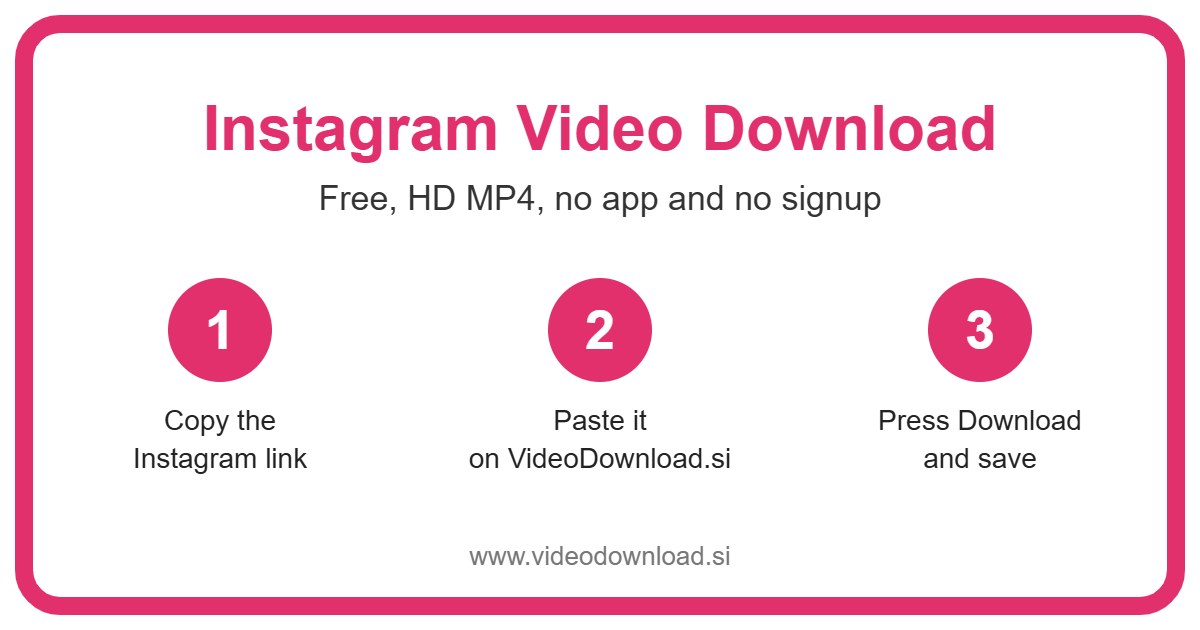
Here’s the full routine. Your Instagram video download works the same way whichever type of video you’re saving.
- Open the post in the Instagram app or on Instagram.com.
- Tap the Share icon or the three dots above or below the post.
- Choose Copy link.
- Come to this page and paste the link into the box at the top.
- Press Download.
- If it’s a carousel, choose which video you want from the ones shown.
- Save the MP4 to your device.
If you’re on your phone
Android usually puts the video in your Downloads folder, and it should appear in your gallery shortly after. On iPhone and iPad, Safari saves it into the Files app under Downloads. Open it there and use the share button to Save Video if you’d rather have it in Photos with the rest of your clips.
If you’re on a computer
Longer videos are honestly nicer to handle on a computer. Open the post on Instagram.com in Chrome, Edge, Firefox or Safari, copy the link from the address bar, paste it here, and the file lands in your Downloads folder on Windows or Mac. From there you can move it to an external drive or a folder for family videos.
Why you might want to save a feed video
Everyone’s got their own reasons, but these come up again and again.
- Family moments. Birthday speeches, a baby’s first steps, that wedding dance. If a relative posted it publicly and you’d like a copy for the family album, ask them, then save it.
- Backing up your business videos. A lot of small shops post product demos and behind the scenes clips as regular feed videos. Keeping your own copies means you can reuse them on your website or in a presentation without hunting for the original file.
- Learning something properly. A ten minute guitar lesson or a sewing tutorial is easier to follow when you can pause and rewind on a bigger screen, without the app pulling you towards the next post.
- Offline time. Heading somewhere with poor signal, like a hill station or a long flight? Save a few longer videos and you’re sorted.
- Showing older relatives. Not everyone wants Instagram on their phone. Your nani might be happier watching the clip on the TV in her living room from a USB stick.
Things that make this tool simple
You don’t make an account, and you don’t install an app. It works right in the browser on Android, iPhone, iPad, Windows and Mac. Each Instagram video download is free, and you’ll never be asked to log in to Instagram or hand over a password.
The carousel picker is probably the bit people like most. Instead of saving five videos and deleting four, you see what’s in the post and choose, so your Instagram video download is just the clip you want. Small thing, but it saves storage and fuss.
On quality, the tool saves the best version Instagram makes available for that video. If the original was filmed nicely, your copy will look nice. If it was shot in a dark hall on an old phone, well, it’ll look like that.
Sorting out Instagram video download problems
Run into trouble? Don’t give up just yet. Most problems have an easy fix.
Nothing happens when I paste the link
Make sure it’s a link to a single post and not to someone’s whole profile. Post links usually have “/p/” or “reel” in them. Clear the box, copy the link again from the post’s Share menu, and paste it once more.
I only got one video from a carousel
That’s by design. The tool lets you choose one video at a time from a carousel. If you want another one from the same post, paste the link again and pick a different clip.
It says the video isn’t available
The post is probably private, removed, or age restricted. The tool can only save public posts that are still online. Videos from private accounts, Close Friends stories and private groups won’t work, and we won’t ask for your login to get around that.
The file won’t open
Try VLC on a computer, since it plays almost anything. On a phone, open the video from the Files app or your gallery. If it stopped partway through, the download was likely interrupted, so start it again.
Long videos download slowly
A longer clip is a bigger file, and on shaky WiFi it can take a while or fail. Get closer to your router, pause other downloads or streaming in the house, or wait for a better connection. On a phone, keep the screen on until it’s finished.
Where’s the file?
Check Downloads. On iPhone, that’s Files, then Browse, then Downloads. On Android, open your Files app and sort by newest. On a computer, your browser’s download list will show it.
Play fair with other people’s videos
Please stick to saving your own videos, or videos you’ve been given permission to use, and keep them for watching offline. If you share one, credit the person who posted it. Reuploading somebody else’s video as if it were yours isn’t okay, even if you mean well.
Common questions
Does the Instagram video download work for long videos?
Yes. Regular feed videos and longer clips work as long as the post is public. Bigger files just take a little longer to save.
How do I save just one video from a post with several?
Paste the post link and press Download. The tool shows the videos in that carousel, and you choose the one you want.
Can I save Reels on this page too?
Yes. Reels, feed videos and carousel videos all work here.
Is it really free?
It is. No sign up, no app, no payment.
Does it work on a Mac?
Yes, in Safari, Chrome or any other modern browser. The MP4 goes straight into your Downloads folder.
What if the person’s account is private?
Then the tool can’t reach it. The simplest thing is to ask them to send you the video directly.
Save it while it’s still there
Posts get archived and deleted all the time, and that lovely family clip might not be around next year. If it’s public and you’ve got the okay, scroll back up, paste the link, and finish your Instagram video download now. Then it’s yours to watch whenever you want.
More Free Video Download Tools
Want to save something else? Try our Facebook Video Download, YouTube Video Download, TikTok Video Download, Instagram Short Download. You can also head back to the VideoDownload.si home page to see every tool in one place.
If a link will not copy or a clip seems to be missing, the official Instagram Help Center explains how sharing and privacy settings work on Instagram.