
Looking for a simple Instagram reel download that doesn’t ask you to install anything or make an account? You’re in the right place. Paste the link to a public Reel into the box at the top of this page, press Download, and you’ll get the video as an MP4 file you can keep on your phone or computer.
I know how it goes. You scroll past a reel with a brilliant pasta recipe, you think “I’ll come back to that”, and three days later it’s gone from your feed forever. Saving it inside the app helps a bit, but you still need a signal and the app open to watch it. Having the actual file is just easier.
This page walks you through how it works, what to do when something goes wrong, and a few honest notes on what the tool can and can’t do.
So what counts as a Reel?
Reels are Instagram’s short vertical videos, the ones that fill your whole screen and loop when they reach the end. They usually have music or a voice over and run anywhere from a few seconds to a few minutes. You’ll find them in the Reels tab, mixed into your main feed, and on people’s profiles under the little clapper icon.
Some people call them Instagram shorts or Insta clips. It doesn’t matter what you call them, the tool treats them the same way. If it plays full screen in that vertical style and the account is public, an Instagram reel download from this page should work.
Just so you know, VideoDownload.si is an independent site. We’re not part of Instagram or Meta, we simply make it easier to keep a copy of a clip.
How to do an Instagram reel download, step by step
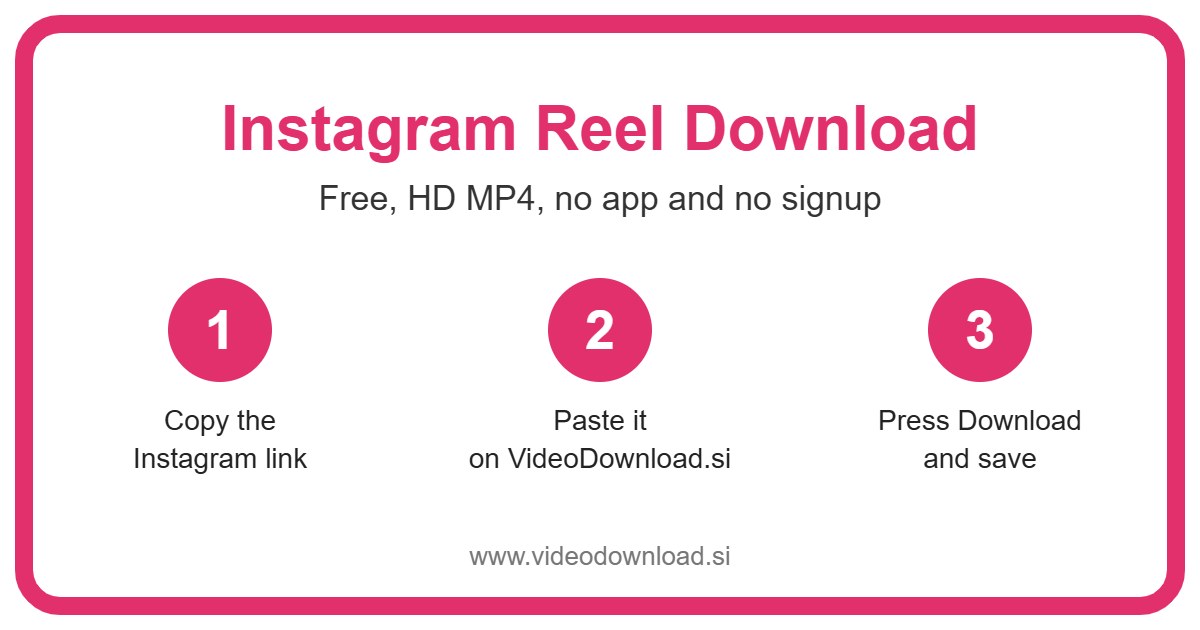
Your first Instagram reel download might take a minute or two. After that it’s quicker than making tea. Here’s the order:
- Open Instagram (the app or the website) and find the Reel you want.
- Tap the Share icon (the paper plane) or the three dots, then choose Copy link.
- Come back to this page in your browser.
- Paste the link into the box at the very top.
- Press the Download button and wait a moment while the video loads.
- When the preview shows up, save the MP4 to your device.
On a phone
On Android, the file usually lands in your Downloads folder and shows up in your gallery app after a few seconds. On an iPhone or iPad, Safari puts it in the Files app, inside the Downloads folder. Open it there, tap the share button, and pick Save Video if you want it in your Photos.
On a computer
On Windows or a Mac it’s even simpler. Copy the link from the address bar while the Reel is open on Instagram.com, paste it here, and your browser saves the MP4 into your normal Downloads folder. You can then drag it wherever you like.
Why people save reels in the first place
Honestly, the reasons are usually pretty ordinary. Here are the ones I hear most often:
- Recipes you’ll actually cook. A reel showing a quick dal or a banana bread is far more useful on your phone when your hands are covered in flour and the kitchen WiFi is patchy.
- Workouts for the gym. Plenty of gyms are basement rooms with zero signal. If the routine is already on your phone, you just press play between sets.
- Backing up your own content. If you make reels for your small bakery or your dance class, it’s smart to keep your own copies in case you lose access to the account or delete a post by mistake.
- Long flights and train rides. Load up a few how to clips before you travel and you’ve got something to watch with the phone in airplane mode.
- Sharing with family who aren’t on Instagram. Say your mum doesn’t use the app but would love the reel of her granddaughter’s school play. Send her the MP4 over WhatsApp and she can watch it straight away.
What makes this downloader easy
There’s no sign up and no app to put on your phone. It runs in the browser you already use, whether that’s Chrome on Android, Safari on an iPhone, or Edge on a Windows laptop. You’ll never be asked for your Instagram password or login either, because the tool doesn’t need it.
It’s also free. You paste, you press one button, and that’s it. The tool saves the best quality Instagram makes available for that particular Reel, so a clip that was posted in good quality comes out looking good. If the creator uploaded something grainy, though, we can’t magically sharpen it.
And because every Instagram reel download here gives you a plain MP4, it plays on pretty much anything: phones, tablets, laptops, smart TVs, even that old media player your uncle still uses.
When an Instagram reel download doesn’t work
Most of the time things go smoothly, but now and then you’ll hit a snag. These are the usual suspects and what to try.
The link doesn’t seem to work
First check that you copied the link to the Reel itself and not to the person’s profile. A Reel link normally has “reel” in it. For a clean Instagram reel download, also make sure nothing extra got pasted along with it, like a bit of a message you were typing. Clear the box and paste again.
The account is private
This one can’t be fixed from our side. The tool only works with public posts, so Reels from private accounts, Close Friends stories, and anything age restricted or removed won’t come through. If it’s your own private account, you can switch it to public for a minute, save your Reel, and switch it back.
The video won’t play
Try a different player. On a computer, VLC opens just about everything. On a phone, open the file from the Files app or your gallery rather than from the browser’s download bar. If the file is tiny, the download probably got interrupted, so give it another go.
Where did my file go?
On Android, look in Downloads or open your Files app and sort by date. On iPhone, open Files, tap Browse, then Downloads. On a computer, check the Downloads folder or press the download icon in your browser to see the latest file.
The WiFi is slow
Longer Reels are bigger files, so a weak connection can make the download crawl or stop halfway. Move closer to the router, switch to mobile data if you have a good plan, or wait until you’re somewhere with a steadier signal.
A quick word about respecting creators
Someone put real time into that reel. Please only download your own videos or ones you’ve got permission to use, and keep them for watching offline. If you do share a clip with someone, mention who made it. What you shouldn’t do is upload another person’s work to your own account as if it were yours. That’s not fair to them, and it can get your account into trouble too.
Questions people ask about saving reels
Is this Instagram reel download tool free?
Yes, completely. There’s nothing to pay and you don’t need to register.
Do I need to log in to Instagram?
No. We never ask for your username or password. You only need the link to a public Reel.
Will the reel keep its sound?
Yes, the MP4 includes the audio that’s part of the video, so the music or voice over comes along with it.
Can I save reels on my iPhone?
You can. Use Safari, paste the link, press Download, and the file appears in Files under Downloads. From there you can save it to Photos.
Why does one reel work and another doesn’t?
Usually it’s because the second one is from a private account, has been deleted, or is age restricted. The tool can only reach public posts that are still live.
Can I save a reel from my own account?
Absolutely, and it’s one of the best uses for it. As long as the account is public when you paste the link, your own Reels save just like anyone else’s.
Ready to save that reel?
Scroll back up, paste your link, and you’ll have your Instagram reel download done before the kettle boils. Keep it for the recipe, the workout, or your own records, and enjoy watching it whenever you like, signal or no signal.
More Free Video Download Tools
Want to save something else? Try our Facebook Reel Download, YouTube Reel Download, TikTok Reel Download, Instagram Video Download. You can also head back to the VideoDownload.si home page to see every tool in one place.
If a link will not copy or a clip seems to be missing, the official Instagram Help Center explains how sharing and privacy settings work on Instagram.